

You’re halfway across a roof when you place the last block in your hotbar. You’ve got more of the same block in your inventory, but opening it breaks your rhythm every time a stack runs out. With Hytale’s Auto-refill hotbar setting enabled, placing that last block can pull more of the same item into the hotbar so you can keep building.
The toggle arrived in Hytale Update 8 Pre-Release Part 3. Look for Auto-refill hotbar in the inventory screen, then try it with one block in your hotbar and a spare stack in your main inventory. That setup makes it easy to see whether the refill worked.
Check Which Hytale Build Has Auto-Refill
The November 5 pre-release notes list the feature under UI & Quality of Life. As of November 11, Part 3 is the newest entry in the official Update 8 preview notes. The latest stable Update 7 hotfix notes are for 0.7.3, so check which branch you launched if the setting is missing.
On PC, open the Hytale Launcher, go to Settings and enable Pre-Release. Let the preview download, then launch it and make a small test world. A flat patch near spawn is enough for the block test, and you can leave your regular build on the branch you already use.
If you normally play with friends, check the server’s version before switching the client you use to join it. The launcher setting applies to your own installation. When your group is ready to update its Hytale server , confirm the target build with the person who manages it so everyone knows which client to launch.
Turn On Auto-Refill In Your Inventory
Open your inventory in the world and turn on Auto-refill hotbar. You can switch it off from the same screen. For a clean first test, pick a common block you have several of, such as a plain building block you’ve already used on a wall.
Use identical items for both stacks. If the hotbar has a full block and the reserve stack is the stair version, choose another stack for the test. The material can look the same in the world, so hover over both stacks and compare the item names before you place anything.
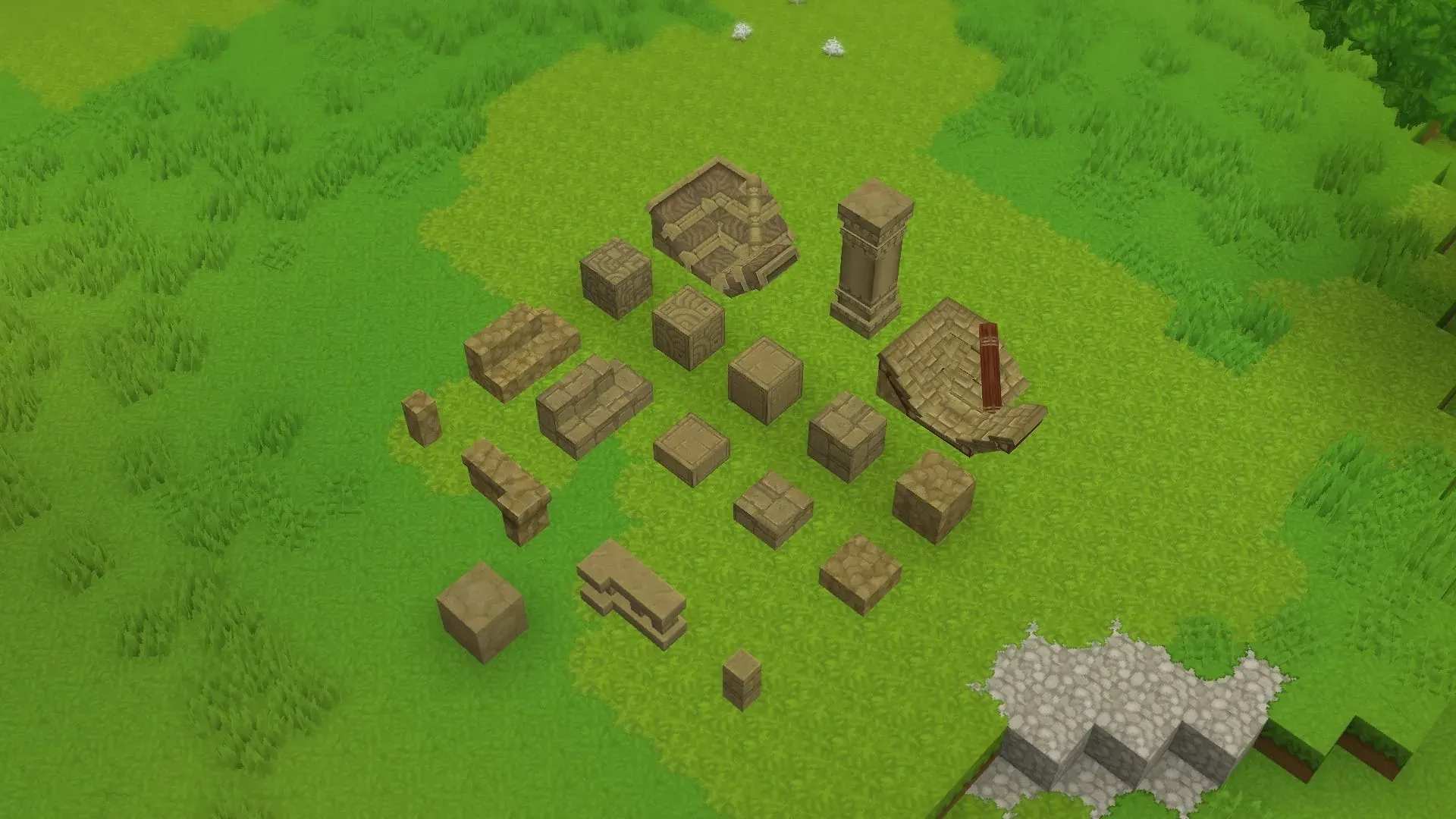
Place The Last Block And Check The Hotbar
Put one block in a hotbar slot and keep a few more of that exact block in the main inventory grid. Use a world where placing the block consumes it. Keep the reserve stack in the same place until the test is finished.
- Select the hotbar slot that holds the single block. Place it somewhere you can easily reach again.
- Look at the hotbar as soon as the placement succeeds. With auto-refill enabled, the game should move more matching blocks from the reserve into the hotbar.
- Open the inventory and check the reserve stack. Its count should go down by the amount that moved. Reset the same setup, turn the toggle off and place the last block again to compare.
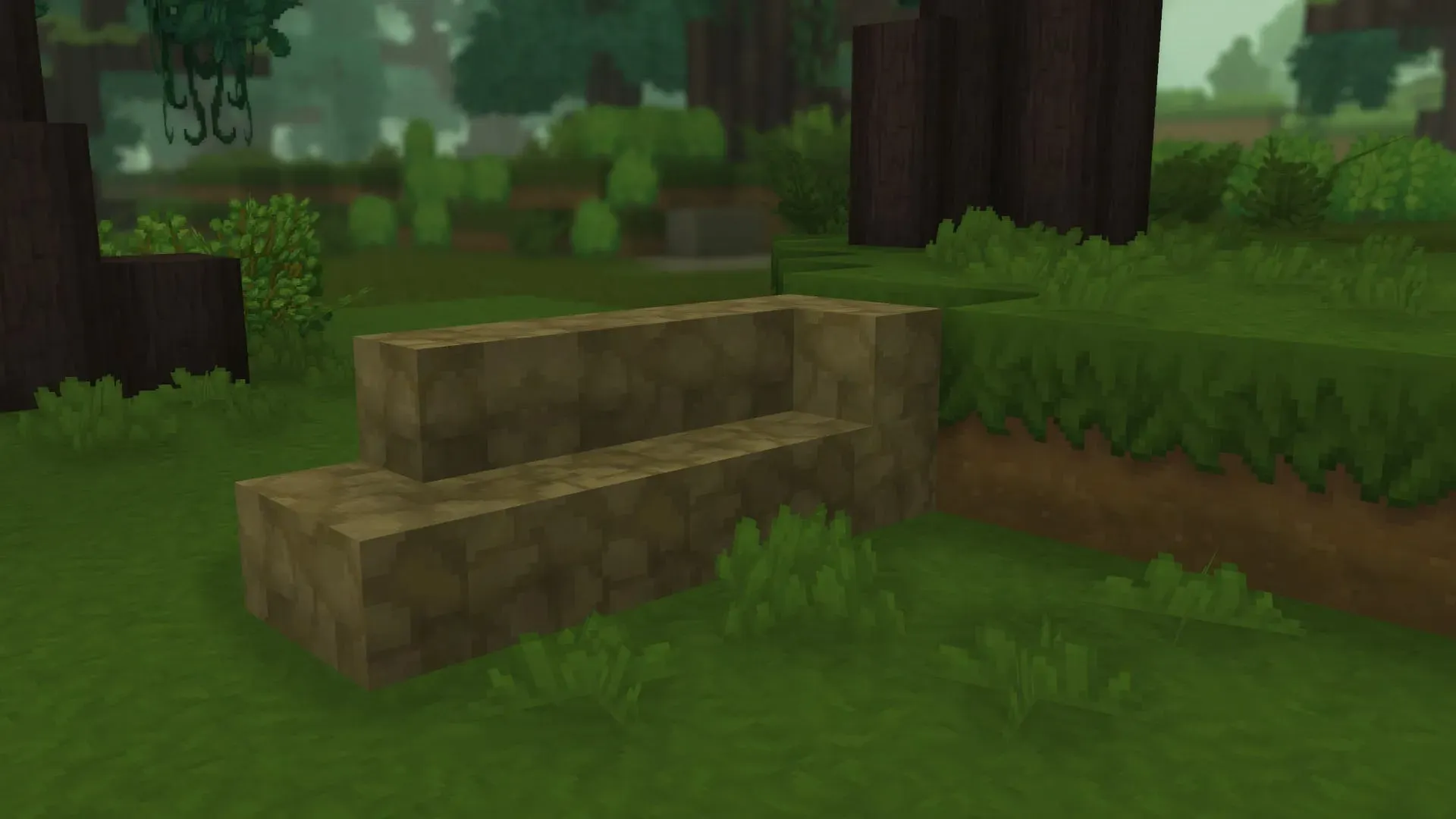
For one more comparison, leave auto-refill on and move the reserve stack out of your inventory. Place a single block again. With no matching item available, expect the slot to stay empty. This is the same check you can make later if a long building session uses up your spares.
Once that works, try it on a stretch of wall or roof that uses the same block repeatedly. Keep a reserve of the main material in your inventory and leave separate hotbar slots for corners and trim. You’ll still be able to switch pieces deliberately when you reach an edge.
What To Check If Your Hotbar Doesn’t Refill
If the slot goes empty, first reopen the inventory and confirm the toggle is on. Then check that the reserve stack is still in the main grid and matches the item you used. For troubleshooting, move a few matching blocks into the main grid if your spares are in a backpack or chest. This keeps the test focused on the inventory behaviour described in the patch notes.
Watch the starting count, too. If a slot holds three blocks and you place one, the stack still has two left, so the refill trigger hasn’t happened. Use one block in the hotbar again. If the same setup works in a fresh solo world but fails in multiplayer, record the client and server builds and check whether the server runs an inventory mod.
If you report a failed refill, include the block’s name, where you kept the spare stack and whether the placement consumed the last item. A screenshot of your starting inventory gives someone else enough information to repeat the same test.
If You Already Use A Refill Mod
Some mods handle cases beyond the native placement example. Builder’s Trinket, for instance, showcases off-hand placement and bucket refill. If your group relies on either feature, compare those actions separately before changing the mod list. The built-in setting is enough to try the matching-block test without installing an extra tool.
Make a backup of your Hytale world before testing a mod change on a copy. If you’re reviewing the rest of your setup, Hytale quality-of-life mods can also help with inventory sorting and finding stored materials.
Build With Friends On Pine Hosting
If you started the workshop on your own, you can move your Hytale world to a server once you’ve confirmed the destination supports its build. With our Hytale server hosting, friends can work on the same project at different times. Place shared building materials near the job site so the next person can grab matching blocks before continuing the wall or roof.