

Running a dedicated Satisfactory server on the experimental branch can be useful when you want to test new updates before they reach the stable release. It gives server owners early access to upcoming features, fixes, and changes, but it also comes with a little more risk. Experimental builds are not always as stable as the public branch, so switching over should be done carefully.
Whether you are managing your own machine or using a Satisfactory server hosting provider, the overall goal is the same: change the branch, make sure the server files update correctly, restart the server, and verify that everything loads as expected. If you are using a hosted panel, this process is usually much easier because the branch selection and update options are already built into the interface.
Why Switch To The Experimental Branch?
The experimental branch is where new Satisfactory content and changes often appear first. Some server owners switch because they want to explore upcoming features early. Others need to move over because the players they are hosting for are already testing an experimental build on the client side.
There are also cases where server owners want to prepare in advance for a future public release. Testing the branch early can help you understand how your current world, performance, or setup might behave after the next big update.
Still, it is important to remember that an experimental build may include:
- unfinished changes
- new bugs
- performance issues
- temporary instability
- compatibility problems with saves or tools
That is why backing up your server before changing branches is strongly recommended.
How To Switch A Self-Hosted Satisfactory Server To Experimental
If you are running a dedicated Satisfactory server on your own machine or VPS, switching from public to experimental is more hands-on than doing it through a game panel. You need to stop the server properly, create your own backup, run the SteamCMD update command with the experimental branch selected, and validate the files during the update. The Satisfactory Dedicated Server app uses Steam app ID 1690800, and SteamDB shows both public and experimental branches for it.
1. Stop the server fully
Before changing branches, make sure the server is completely stopped.
How you do this depends on how your server is running:
- If you started it in a terminal window, go back to that window and stop the process with Ctrl + C.
- If you run it as a Linux service, stop it with:
sudo systemctl stop satisfactory
- If you use a custom service name, replace
satisfactorywith your actual service name.
The important part is that FactoryServer is no longer running before you update it. That helps avoid file conflicts and incomplete updates during the branch change. The Satisfactory wiki’s service guidance is based on running the server as a systemd service, which is why systemctl is a common stop/start method on Linux.
2. Back up your save files and config files
Before switching to the experimental branch, create a manual backup of anything you would not want to lose.
That should usually include:
- your save files
- server configuration files
- any custom scripts or service files tied to your setup
A simple way to do this on Linux is to copy the whole server folder or at least your save and config directories into a dated backup folder, then compress it.
Example:
mkdir -p ~/satisfactory-backups
cp -r ~/satisfactory ~/satisfactory-backups/satisfactory-backup-$(date +%F)
If you want a compressed archive instead:
tar -czf ~/satisfactory-backups/satisfactory-backup-$(date +%F).tar.gz ~/satisfactory
This matters more on experimental because it is a testing branch and may introduce issues that do not exist on public. Keeping a clean backup gives you a rollback point if the save or install does not behave the way you expect after updating. The official/community Satisfactory server documentation distinguishes the stable public branch from the experimental branch, and the experimental flag is what tells SteamCMD to install that earlier testing version.
3. Update the server to the experimental branch with SteamCMD
Most self-hosted Satisfactory servers are installed and updated through SteamCMD. To switch from public to experimental, run the update command with the -beta experimental flag.
A standard command looks like this:
steamcmd +force_install_dir ~/satisfactory +login anonymous +app_update 1690800 -beta experimental validate +quit
What each part does:
+force_install_dir ~/satisfactorytells SteamCMD where your server is installed+login anonymoussigns in anonymously, which is supported for the dedicated server+app_update 1690800tells SteamCMD to update the Satisfactory Dedicated Server app-beta experimentalswitches the install from the public branch to the experimental branchvalidatechecks the installed files against the selected branch+quitexits SteamCMD when finished
The experimental branch flag is specifically -beta experimental, and community/official references for Satisfactory dedicated servers use that flag for experimental installs. SteamDB also lists experimental and public as branches for app 1690800.
4. Validate the files during the update
For self-hosted servers, file validation is usually done as part of the same SteamCMD command by adding the word:
validate
So you do not usually run a separate validation step. It is built right into the update command:
steamcmd +force_install_dir ~/satisfactory +login anonymous +app_update 1690800 -beta experimental validate +quit
This is important when switching branches because validation checks your local files against the selected branch and replaces anything missing, outdated, or mismatched. That reduces the chance of ending up with leftover public-branch files after moving to experimental. References for Satisfactory dedicated server installation and updates describe validate as the file-check step in the SteamCMD command itself.
5. Start the server again
Once SteamCMD finishes, start the server again using the same method you normally use.
For example:
If you run it as a service:
sudo systemctl start satisfactory
If you start it manually:
cd ~/satisfactory
./FactoryServer.sh
After startup, watch the console or logs and make sure the server finishes booting normally.
6. Test the server before normal play resumes
Once the server is back online, test it before treating the branch switch as complete.
Check that:
- the save loads correctly
- the server shows no obvious startup errors
- players using the experimental client can connect
- the world behaves normally after joining
That final check is worth doing because experimental builds can be less stable than public, even when the branch change itself worked correctly. The branch exists specifically as a testing track ahead of the stable public release.
How To Switch A Hosted Satisfactory Server To Experimental
For most Satisfactory server hosting setups, changing branches is much simpler than doing it manually. Many providers include branch settings directly in the control panel, which means you usually do not need to run SteamCMD commands yourself.
The steps below reflect how this works on hosts like Pine and are a good example of the general process you will see with many providers.
Switching To Experimental In A Hosting Panel
For most game server hosting setups, changing branches is much easier than on a self-hosted server. Instead of updating the server manually through SteamCMD, you can usually do everything from the control panel.
1. Create a backup first
Before making any changes, create a backup from the Backups tab. That gives you a restore point if anything goes wrong during the branch change.
2. Open the Startup tab
Log in to your game panel and go to the Startup tab.
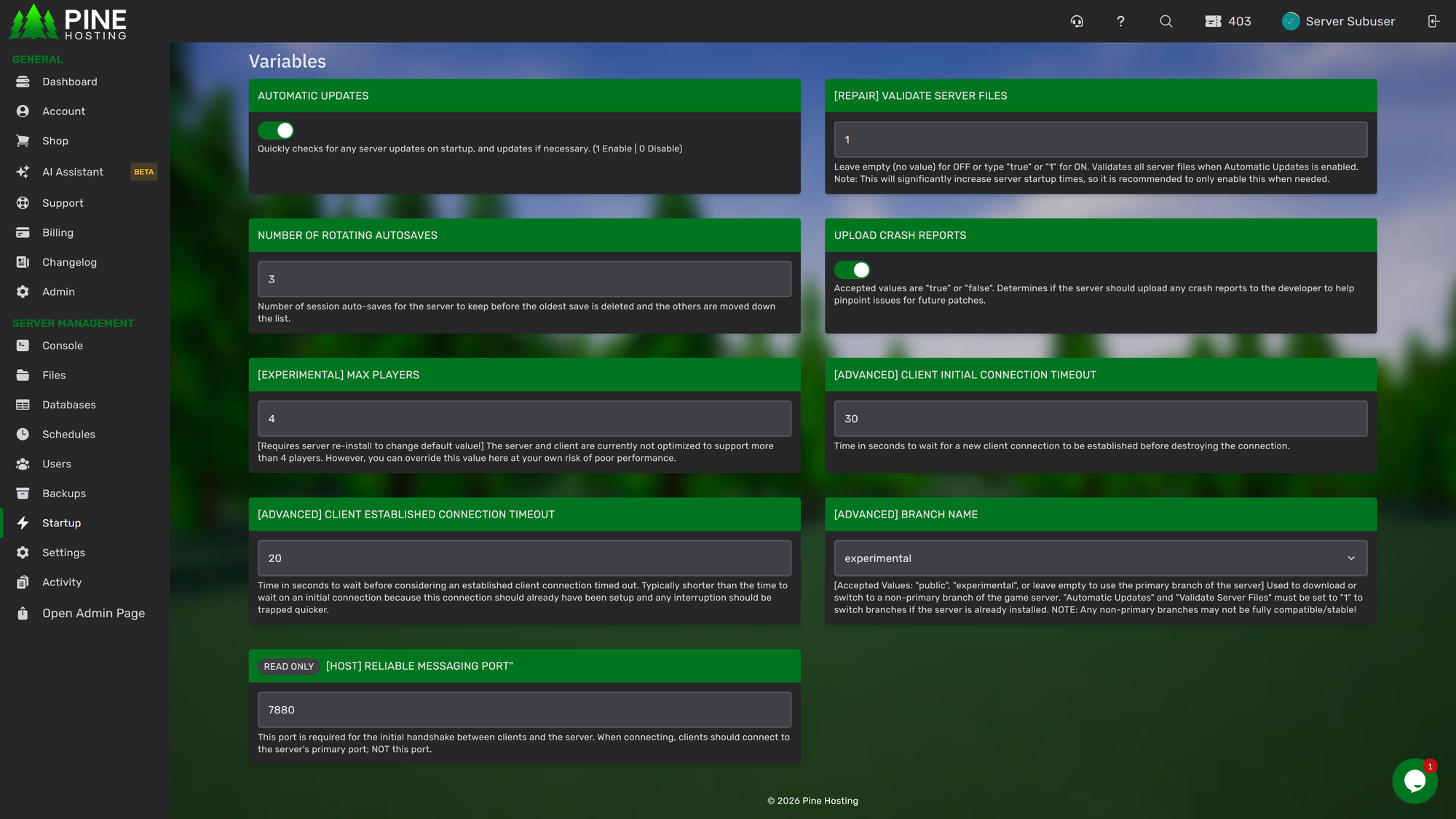
3. Change the Branch Name
Find the Branch Name field and select experimental from the dropdown menu.
4. Enable File Validator
In the same startup table, find File Validator and enter 1. This tells the server to validate its files on the next restart, which helps replace any missing or incorrect files after switching branches.
5. Check Auto Updates
Make sure Auto Updates are enabled. If they are off, turn them on from the same tab so the server can stay current with future experimental updates.
After applying everything, the panel fields you edited should look like this:
6. Restart the server
Go back to the Console tab and click Restart Server. The server will apply the new branch and run file validation during startup.
After the server has successfully switched branches, it is a good idea to disable file validation again. Leaving it enabled all the time can lead to slower startup times on future restarts.
Without validation, a branch change may still work, but it is more likely that leftover files or incomplete updates could cause problems.
Video On How To Make Your Satisfactory Server Run Experimental Mode:
Final Checks After Switching
After the restart is complete, confirm a few things before considering the process finished:
- the server starts without errors
- the world loads correctly
- players can join using the matching client version
- no major performance or save issues appear right away
If something does go wrong, your backup gives you a safer path back.
Host Experimental More Easily With Pine Hosting
Switching your server from public to experimental branch is not complicated, but doing it properly can save you from update issues, file mismatches, and unnecessary downtime. The safest approach is to back up your server first, change the branch carefully, validate files during the transition, and confirm everything is running correctly before players jump back in.
If you are self-hosting, that usually means more manual work through SteamCMD and server file management. For many server owners, using a hosting panel is the easier option because branch changes, file validation, auto updates, and restarts are all handled from one place.
If you want a simpler way to manage your Satisfactory server hosting, Pine Hosting makes it easy to switch branches, create backups, and control updates without dealing with the extra complexity of a manual setup. For anyone looking for a more convenient Satisfactory server hosting solution, choosing the right Satisfactory server hosting plan can make testing experimental updates much easier while keeping your server management streamlined.
