
Someone puts a music disc on while you’re sorting loot. A few minutes later, the room’s quiet again and the person who picked the song is halfway back to the mine. If you’ve got a few spare discs in your boxes, a jukebox playlist can keep the music going while everyone gets on with their jobs.
Place a single chest directly on top of a jukebox and add your music discs. On a Minecraft server with a Java build that supports playlists, the jukebox plays through the discs and loops back around.
What You Need For A Jukebox Playlist
You’ll need a jukebox and a single chest. Bring two different music discs so you can tell when the jukebox switches tracks during your first test. To craft the jukebox, put a diamond in the middle of a crafting table and fill the eight surrounding slots with wooden planks. A regular chest, trapped chest or any copper chest variant can hold the playlist. Leave a gap between it and any matching chest so they stay separate.
Mojang added playlists in Java Edition 26.4 Snapshot 4 and Bedrock Beta & Preview 26.70.20. On older releases, the jukebox still plays a disc you insert by hand. Check your game version before you spend time moving chests around to get the playlist working.
How To Set Up The Chest And Jukebox
Put the jukebox somewhere people already spend time, like the wall beside your shared furnaces. Leave room to open the chest and reach the jukebox itself. You’ll want access to both when you’re adding records or skipping a track.
- Set down an empty jukebox.
- Place the single chest directly on top of it, with the blocks touching.
- Put your music discs into the chest. Use nearby slots so it’s easy to see which discs you’ve added.
- Let the first track finish and listen for the next one. Try two discs you already recognize so you can hear the change.
The jukebox follows the chest’s slot order. It skips empty slots and anything besides music discs, then loops when it reaches the end. You can keep a few spare items in the chest without interrupting playback.
How To Skip Or Stop The Music
When a track finishes, the jukebox swaps the disc it just played for the next one in the chest. That can make the chest look like it’s missing a disc when you open it. Check what’s playing before you assume one of your records has gone missing.
To skip a track, interact with the jukebox to eject the disc that’s playing. It advances to the next available record, so pick up the ejected one if you want to keep it in the rotation. To stop the playlist, take the other discs out of the chest before ejecting the current one. If you only empty the chest, the disc still in the jukebox will repeat.
What To Check If The Playlist Is Silent
Start with a familiar disc in a regular jukebox without a chest. Stand beside it and listen. If your friends can hear it and you can’t, check the Jukebox/Note Blocks volume in Java Edition’s sound settings before you change the setup.
If a disc plays on its own but the playlist stays silent, try an empty jukebox with a single chest and two regular music discs. That gives you a quick way to check the chest setup separately from a particular track.
Where To Find The Flurry Music Disc
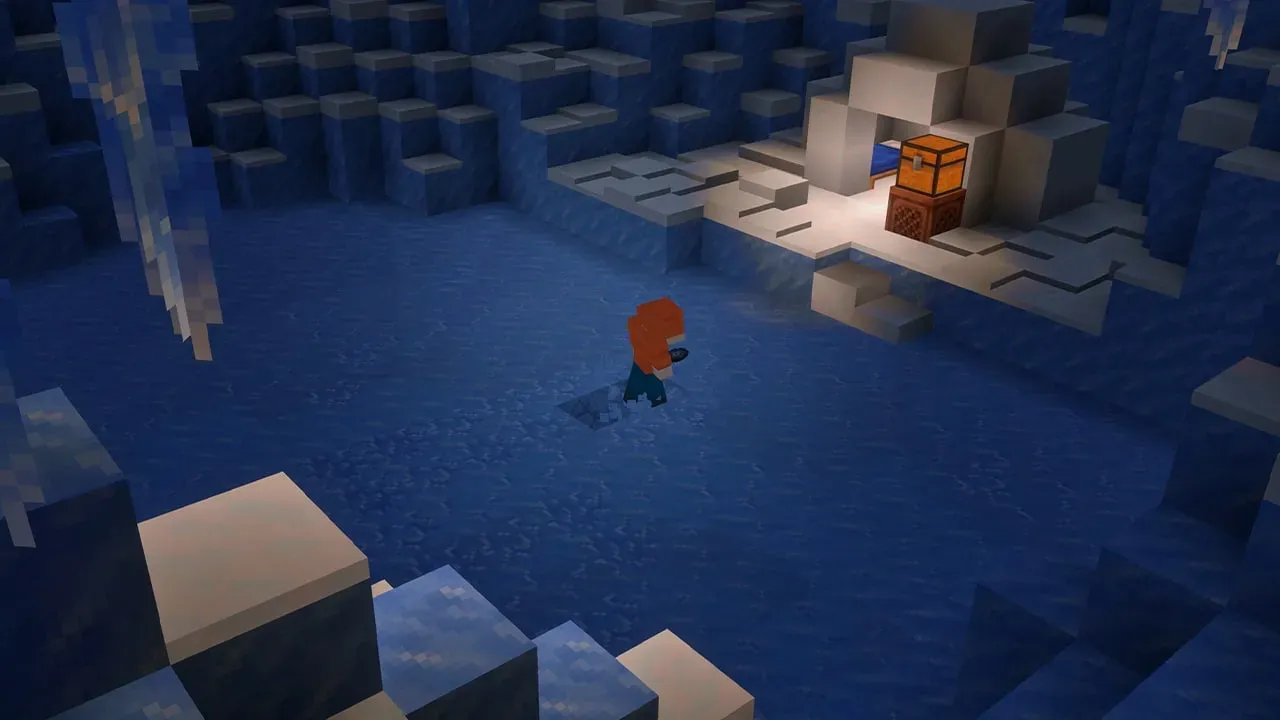
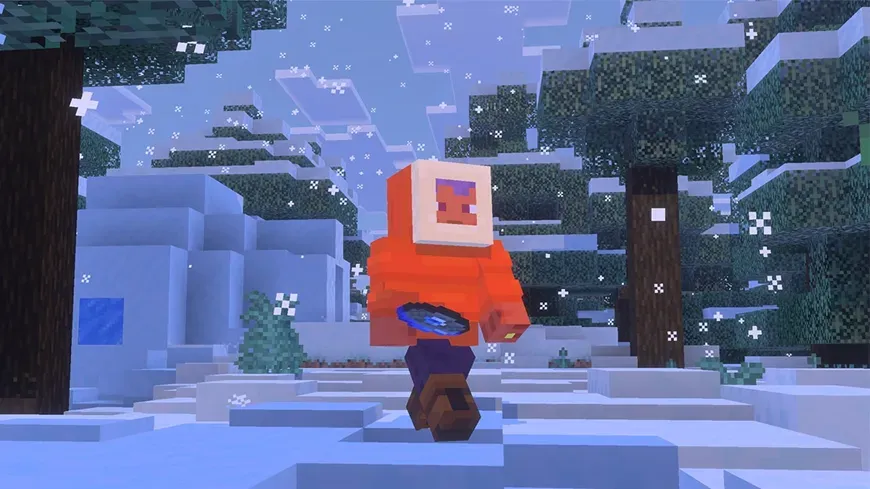
Flurry is a track by Hyper Potions that first appeared on a music disc in Java 26.4 Snapshot 7 and Bedrock Beta & Preview 26.70.23. To find it in Survival, look for igloos in snowy biomes. Check under the carpet for a trapdoor. Some igloos have a ladder down to a basement, where the chest can contain the disc.
Bring a couple of familiar records when you try your first playlist. One player report for Java Snapshot 7 describes Flurry producing note particles without sound. If that happens to you and your other discs play, use those to check that the playlist changes tracks.
How To Try Jukebox Playlists With Friends
For Java multiplayer, get everyone onto the same snapshot as the server. In the Minecraft Launcher, enable Snapshots under Installations and choose the build your group is using. Use a fresh test world or a copy of your save for the first session. That way you can check the jukebox and the rest of the snapshot before loading your main world.
Self-Hosting On Windows
If you self-host Java on Windows, download the server JAR from the changelog for your chosen build, such as a Minecraft 26.4 snapshot. Run it from a separate test server folder with its own world. Connect with your matching client before you invite the rest of the group, so you can confirm the server starts and accepts players.
Testing On Bedrock
For Bedrock, first try the setup in a fresh Preview or beta world. Check the version on the title screen before you add your discs. Use Preview 26.70.23 or a later build with Flurry if you want to look for the disc on the same trip.
Installing A Snapshot On Pine Hosting
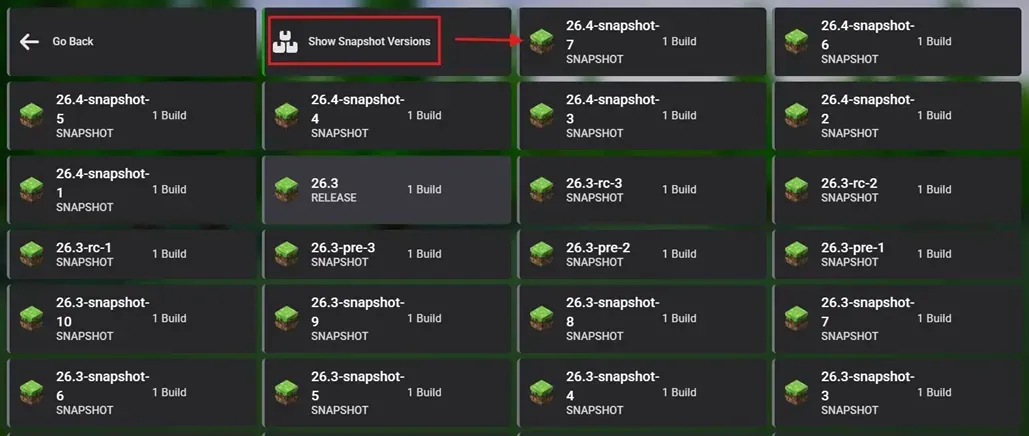
Stop your vanilla Java server and make a backup before changing versions. Open Versions, choose Vanilla, and show the snapshot list. Pick the same build your friends installed. Leave Wipe Server Files off if you’re keeping your existing files. The snapshot installation steps cover the full panel process.
Build A Shared Music Room With Pine Hosting
Give your group’s record collection its own corner. Put a spare chest nearby for discs you want to keep out of the rotation, and leave the playlist chest where anyone can reach it.
With our Minecraft server hosting friends can stop by even when the person who built the room is offline. Everyone can bring back a record from their next trip and add it to the mix.