

Connecting to a Rust server is usually simple once everything is set up properly, but many server owners run into the same issue right away: the server is online, yet it does not appear in the browser. In many cases, the server is not actually broken. The problem is often just Rust’s filters, the server list not updating yet, or the server being searched for in the wrong category.
There are a few reliable ways to join a Rust server. Players can use the in-game server browser, add the server through Steam’s server list, or skip the browser completely and connect directly with the server IP and port. For new or private servers, direct connection is often the fastest option.
Most Common Reasons Your Rust Server May Not Show In The Server List
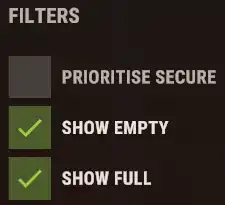
The first thing to check is the "Show Empty" filter. This is probably the most common reason a new Rust server does not appear in the server list. If nobody is connected yet, Rust may hide the server unless empty servers are allowed in the filter settings when searching in the server list. A lot of server owners think their server is missing and start blaming the server and host, when it is really just being filtered out by the filtering set in the server list.
The next thing to check is the server category. Many servers are listed under Modded by default when first launched, so searching only under Community can make it seem like the server is missing. If you want to switch your Rust server to Community, that usually needs to be configured before launch rather than assumed afterward.
Another common issue is that the server list has not updated fast enough yet. A newly started server may not appear instantly, even if it is configured correctly and fully online. It can actually take several minutes for the list to refresh and display a new server.
There is also the possibility that the server browser is bugged client-side. Search results do not always refresh properly, and sometimes filters or categories behave unexpectedly. In those cases, restarting Rust, refreshing the list again, or checking through Steam’s server browser can help confirm whether the problem is only on the player’s side. Steam’s browser remains one of the standard fallback methods for joining a Rust server.
Sometimes the issue is more straightforward: the server is offline. If the Rust server is still booting, crashed during startup, or failed to start correctly, it will not appear in the list at all. Before digging too deep into browser problems, it is always worth confirming that the server is actually online and fully loaded.
The server name can also be the problem. If you use something too generic like “Rust Server” or “My Rust Server,” it can get buried among many similar results. A unique and recognizable name makes the server much easier to find, especially for new players who are searching manually. Just make sure to hit save and "Restart" your server after changing the name to ensure the changes are reflected ingame.
How To Find And Connect To Your Rust Server
The most common way to join is through Rust’s in-game server browser. Launch Rust, open the "Play" menu, and first make sure you are searching in the right category. For many newly launched servers, that will be Modded by default. If you specifically configured the server for Community before starting it, then check there instead.
Before searching, make sure the "Show Empty" filter is enabled. This is one of the biggest reasons people cannot find their own server. If you are the first player trying to join, the server will have zero players online. With "Show Empty" turned off, Rust may hide it from the results completely.
After that, type your server name into the search bar. If your filters are correct and the server list has updated, your Rust server should appear in the results.
Players can also use Steam’s built-in server browser to search for the server and save it to favorites for easier access later. This can help if the in-game browser is being inconsistent. You can also add your server to Steam favorites as a practical fallback.
Another option is to connect directly using the server’s IP and port. This is often the most reliable method when you already know the connection details. Instead of waiting for the browser to refresh or dealing with filters, you simply join the server directly. This is especially useful for private servers, freshly launched servers, or situations where the list is not showing the server properly.
Using Direct IP To Join Your Rust Server
If the browser is not cooperating, direct IP joining is the best backup method. It avoids the search system entirely and lets players connect straight to the server. For test servers, private communities, or newly launched servers, this is often the easiest way to join without wasting time troubleshooting the list.
It is also useful when helping players connect for the first time. Instead of walking them through categories and filters, you can simply send them the connection details and let them join directly.
Can You Customize Your Rust Server IP?
Yes. If you do not want players connecting with a plain numeric IP, you can set up a custom domain or subdomain for your server. Rust supports DNS-based connections using an A record and an SRV record, which lets you share a cleaner hostname with players instead of a raw IP address. This can make your Rust server hosting setup look more professional and easier to remember.
Host Your Rust Server With Pine Hosting
Ready to launch your own Rust server? Pine Hosting gives you reliable Rust server hosting, clear access to your server’s IP and port, and support for custom domain connections so players can join your server more easily. If you are looking for the best Rust hosting for performance and simple server management, Pine Hosting is ready to help.
