
Rust has plenty of useful keybinds that can make everyday gameplay easier. From quickly looting containers and stacking resources in your crafting queue to adjusting your field of view and checking combat logs, a few simple shortcuts can save you time and unnecessary clicks. In this article, we'll cover 10 useful Rust keybinds, how they work, and how to set them up on PC.
How To Add, Save And Undo A Rust Keybind
Press F1 to open the console and check what a key does before you change it. Type bind followed by the key’s name, such as bind g, and save the current assignment somewhere you can find it later. Then copy one of the new bind commands below without the backticks, paste it into the console, and press Enter. Try the key in-game before running writecfg in the console to save your changes.
To clear a test bind on F6, use bind f6 "". To restore the previous action, re-enter the original bind you saved. Run writecfg again when you’re done.
Keep in mind, however, these commands change only your own controls. If you’re trying to change settings for everyone on the server, use the relevant Rust admin commands.
1. Open The Map On Your Position
Press G to open the map and center it on your player. This is handy when you’ve been looking at a marker on the other side of the map and just want to see where you are.
bind g +map;+focusmap
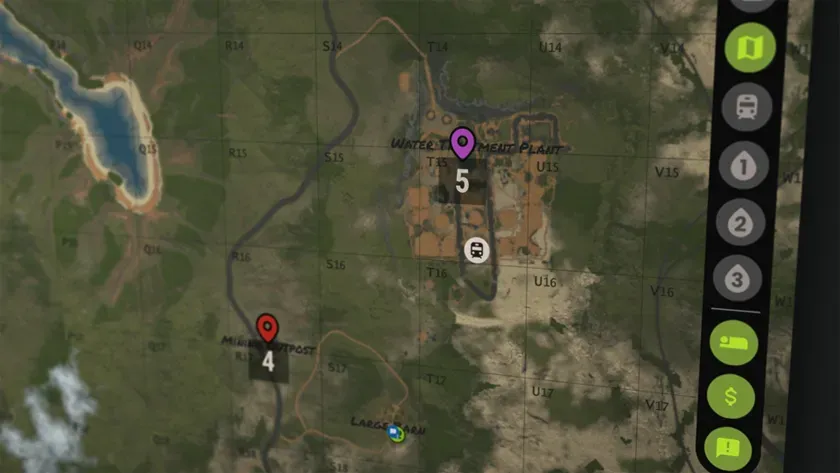
If you want a smaller interface while the map is open, use the version below in place of the first one. It sets the UI scale to 0.5 while you hold G and to 0.8 when you let go. Change 0.8 to the scale you normally use.
bind g "+map;+focusmap;+meta.if_true \"graphics.uiscale 0.5\";+meta.if_false \"graphics.uiscale 0.8\""
2. Move Loot Without Dragging It
Open a container, hold F6, and move your cursor across the items you want to take. This is called hover looting. Start with a few items in a box so you can see how it feels. You can swap F6 for a key you can reach without taking your hand off your movement keys.
bind f6 +hoverloot
3. Mute Other Players’ Voices
Tap F4 to mute incoming voices. Tap it again to bring them back. The example restores voice volume to 1. If you usually play with quieter voices, replace 1 with your normal volume first.
bind f4 ~audio.voices 0;audio.voices 1
4. See Who Damaged You
After a fight, the combat log shows recent damage. This bind opens it with the F1 console so you don’t have to type combatlog every time. You can also enter combatlog on its own if you'd rather keep your usual F1 setup.
bind f1 consoletoggle;combatlog
5. Change How Closely You Need To Aim At An Object
Ever try to look at a wall and get the prompt for the box in front of it instead? Press F3 to switch between two settings that control how close your crosshair needs to be to select an object. The smaller value is for precise targeting. The larger one gives you more room when picking up loose items. Write down your usual value before trying it.
bind f3 ~client.lookatradius 0.01;client.lookatradius 10
6. Drop A Stack From Your Inventory
This shortcut uses both lines. mouse4 is a side mouse button and mouse0 is left click. Hold the side button and click the stack you want to drop. The side button also puts away the item you’re holding. Try it with a small stack of wood at base, then release both buttons and check that left click works normally. If you change the side button, change it on both lines.
bind mouse4 +holsteritem;+directionaldrop
bind [mouse4+mouse0] +meta.if_true "buttons.dropitemstack false";+meta.if_false "buttons.dropitemstack true"
7. Stack Resources In The Crafting Queue
When your inventory fills up on a farm run or while hauling raid loot, queue an item that uses the resources you’re carrying. Rust sets those materials aside while the craft is pending, which can free up inventory slots for more loot. Players call this stacking.
The simple bind below queues one Tool Cupboard (TC). You’ll need at least 1,000 wood in your inventory. While the cupboard is in the queue, that wood is held there.
bind f8 craft.add -97956382 1
After setting the bind, press F8 and check your crafting queue. Once you’ve tried it with wood, you can replace it with the longer F8 bind below to stack several materials. It queues a Tool Cupboard for wood, Stone Barricades for stone, and Sheet Metal Double Doors for metal fragments. Pressing F8 again runs the queue, cancel, and requeue sequence to restart the craft timers. Keep at least one inventory slot free for materials that come back during the reset. You’ll need the Stone Barricade blueprint to stack stone this way.
bind f8 craft.add -97956382 1;craft.cancel -97956382 1;craft.add -97956382 1;craft.add 15388698 5;craft.cancel 15388698 5;craft.add 15388698 5;craft.add 1390353317 2;craft.cancel 1390353317 2;craft.add 1390353317 2
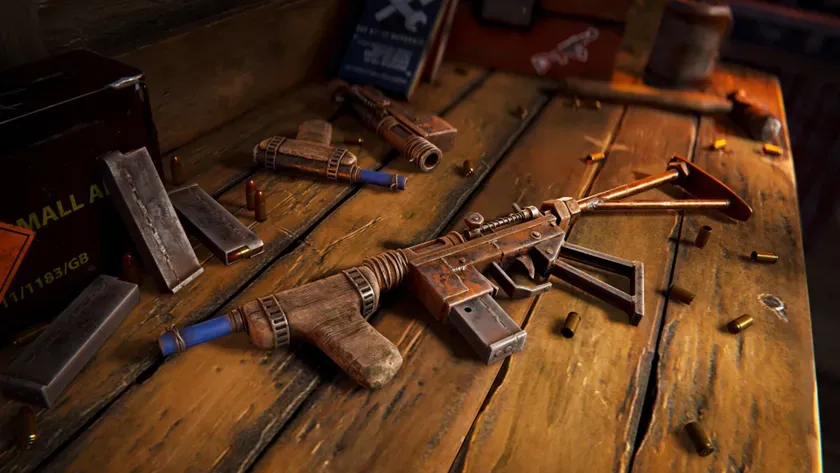
Watch the queue while you’re gathering or moving loot. Cancel crafts before they finish if you want the materials back. When you’re ready to clear the whole queue, unload enough loot first to leave room for everything you’ll reclaim.
8. Zoom In And Hide The On-Screen Display
Use this bind when you want a closer look without health and other on-screen indicators in the way.
bind k +meta.if_true "meta.exec \"graphics.fov 70\" \"graphics.hud 0\"";+meta.if_false "meta.exec \"graphics.fov 90\" \"graphics.hud 1\""
The example uses K. Once you’ve set the bind, hold the assigned key to narrow your field of view (FOV) and hide the on-screen display (HUD). Releasing the key brings the HUD back and resets your FOV to 90. If you normally play with a different FOV, replace 90 in the command with your usual setting. If the HUD stays hidden, open the console with F1 and enter graphics.hud 1.
9. Zoom When You Aim
This version keeps right-click for aiming and changes the view while you hold it. It also changes how large the item in your hands appears. Test it with the bow or other gear you carry, since right-click can also trigger other actions. Try this on its own before using the K zoom too. Both binds change the same field of view. The release values are 90 for FOV and 0 for viewmodel scaling. Swap those for your usual settings.
bind mouse1 +attack2;+meta.if_true "meta.exec \"fov 70\" \"vm_fov_scale 1\"";+meta.if_false "meta.exec \"fov 90\" \"vm_fov_scale 0\""
10. Change How The Camera Returns After Alt-Look
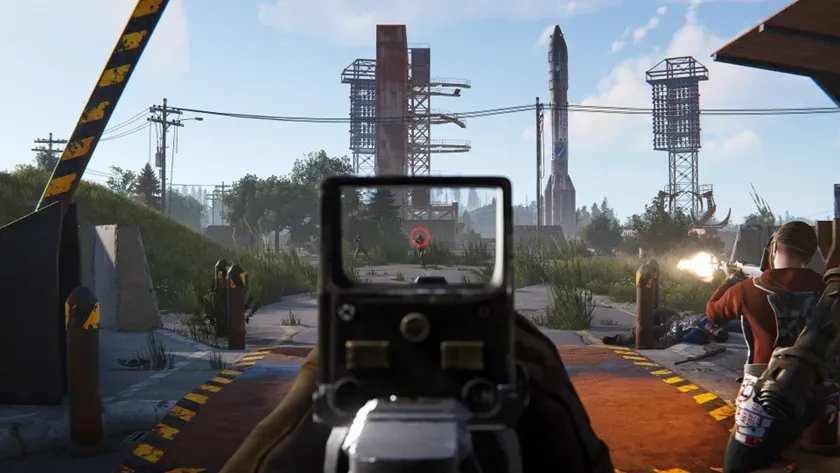
Alt-look lets you glance around without turning your character. This bind changes how the camera returns to the direction you’re facing.
bind leftalt +altlook;+headlerp 6775;headlerp 0
The example uses Left Alt. Once you’ve set the bind, try it around your base. Hold the key to look to one side, then release it to see how quickly the camera snaps back. If you prefer the original movement, restore the bind you saved for that key.
Bonus: Reduce How Long Debris Stays Visible
When walls, doors, or other structures break in Rust, they leave behind debris known as gibs. If you want this debris to disappear almost immediately, open the F1 console and enter the following two commands.
effects.maxgiblife 0
effects.mingiblife 0
Why Host Your Own Rust Server?
While these keybinds work on any Rust server, having your own server gives you the freedom to experiment with different settings, try new things, and play without other players interrupting. You can enable creative settings to build without spending resources, or simply enjoy a more relaxed experience with friends.
With our Rust server hosting, you can easily manage your server settings through Easy Config in the Pine Panel. We also provide a Plugin Installer, allowing you to customize your server with additional features and create the experience you want.