

Modding is one of the biggest reasons players are excited about running a Hytale server. From quality of life improvements to full gameplay overhauls, mods allow server owners to create unique multiplayer experiences. However, how mods are installed and managed depends heavily on how your server is hosted.
In this guide, we compare self hosted Hytale servers with dedicated Hytale hosting, explain why game hosting is the better option for modding, and walk through the mod installation process for both methods step by step.
Self Hosting vs Dedicated Hytale Hosting; What Is The Difference?
Before installing mods, it is important to understand how self hosting and dedicated Hytale hosting differ.
Self Hosting A Hytale Server
Self hosting means running the Hytale server software on your own hardware. You are fully responsible for:
- Installing and updating the server software
- Managing dependencies and runtimes
- Manually installing and configuring mods
- Troubleshooting crashes and performance issues
- Handling security and backups
While self hosting offers full control, it becomes increasingly complex when running a modded Hytale server, especially as mod counts increase.
Dedicated Hytale Hosting
Dedicated Hytale hosting refers to purpose-built Hytale server hosting platforms designed specifically for multiplayer servers.
With a dedicated modded Hytale server host, the provider manages:
- Server installation and updates
- Optimized hardware for Hytale
- Automated restarts and crash handling
- Integrated mod and plugin management
- Backups and security
This makes dedicated hosting far more efficient for modded servers.
Why Dedicated Hytale Hosting Is Better For Modding
While both setups support mods, dedicated Hytale hosting offers major advantages for running a modded Hytale server.
Simplified Mod Installation
Self hosting requires manual downloads, FTP uploads, and configuration edits. Dedicated hosting replaces this with one click installs through a control panel.
Improved Stability And Compatibility
Dedicated modded Hytale server hosting platforms reduce conflicts by managing versions, dependencies, and updates automatically.
Better Performance For Modded Servers
Mods increase CPU and RAM usage. Dedicated hosting uses hardware optimized for game servers, ensuring smoother gameplay even with larger mod lists.
Easier Long Term Maintenance
Updating mods on a self hosted server is manual and time consuming. With dedicated hosting, updates can be applied directly from the panel with minimal downtime.
For most communities, dedicated Hytale hosting is the more reliable and scalable option.
How To Install Mods On A Self Hosted Hytale Server
Installing mods on a self-hosted Hytale server is a manual process, but it is straightforward once you know which folder to use. Since all mods are server-side, you only need access to your Hytale server installation folder.
You do not need to open any local save or world folders to install mods.
Step 1: Locate Your Hytale Server Installation Folder
The server installation folder is where you installed or extracted the Hytale server software. This is the only folder you need for mod installation.
How To Find The Server Folder As A Beginner
If you remember where you installed the server, open that folder directly. Common locations include:
- Desktop
- Downloads
- A custom folder on another drive
If you are not sure:
- Click the Windows icon.
- Type Hytale.
- Look for a folder related to your server setup.
- Open it and check its contents.
A proper Hytale server folder usually contains:
- a server executable or start script (commonly a
.batfile) - configuration files
- log files after the server has been run at least once
Tip: If you are unsure, start the server once. New files or folders appearing afterward usually confirm you are in the correct directory.
Step 2: Find Or Create The mods Folder
Inside your Hytale server folder, look for a folder named:
mods
If The mods Folder Exists
Open it. This is where all server-side mods go.
If The mods Folder Does Not Exist
Create it:
- Right click an empty space inside the server folder.
- Click New
- Click Folder
- Name it exactly:
mods
Make sure the folder is not nested inside another folder and is spelled correctly.
Step 3: Download Mods And Place Them Correctly
Download mods from a trusted source such as CurseForge.
When installing a mod:
- Place the mod file directly into the
modsfolder - Do not place mods anywhere else
- Avoid adding too many mods at once
If The Mod Downloads As A Zip File (Extract It First)
Sometimes mods are downloaded as a .zip file. In this case, you must extract the contents before installing the mod.
Here is exactly what to do:
- Locate the downloaded
.zipfile on your computer. - Right click the zip file.
- Click Extract All.
- Click Extract again when Windows asks where to extract the files.
Windows will create a new folder containing the extracted files.
What To Do After Extracting
- Open the newly extracted folder.
- Look for the actual mod file inside.
- Move only the mod file into your server’s:
mods
folder.
Important beginner rule:
Do not place the zip file itself into the mods folder. The server cannot load mods directly from zip archives.
Double Check Your Folder Structure
Correct:
server/mods/modFile
Incorrect:
server/mods/modFile.zip
Incorrect:
server/mods/modFolder/modFile
If you see either incorrect examples, the mod will not load.
Step 4: Start The Server And Verify Mods Loaded
Once mods are in place:
- Start your Hytale server.
- Watch the console as it launches.
- Look for messages indicating:
- mods were detected
- mods loaded successfully
- no errors or missing requirements
If the server starts normally, the mods are installed correctly.
Step 5: Troubleshoot Common Problems
If the server fails to start after adding mods, the most common reasons are:
- the mod is not compatible with your Hytale server version
- the mod file is in the wrong directory level
- one of the mods is broken or outdated
Beginner-friendly troubleshooting method:
- Remove the most recently added mod.
- Restart the server.
- Add mods back one at a time until the issue appears again.
How To Install Mods With Dedicated Hytale Hosting At Pine Hosting
Dedicated Hytale hosting removes nearly all manual work from the modding process.
Step 1: Log In To Your Server Control Panel
Access your Pine Hosting game panel, where all server management tools are centralized.
Step 2: Open The Plugins Tab
Navigate to the Plugins tab. This section is designed specifically for managing mods on your modded Hytale server.
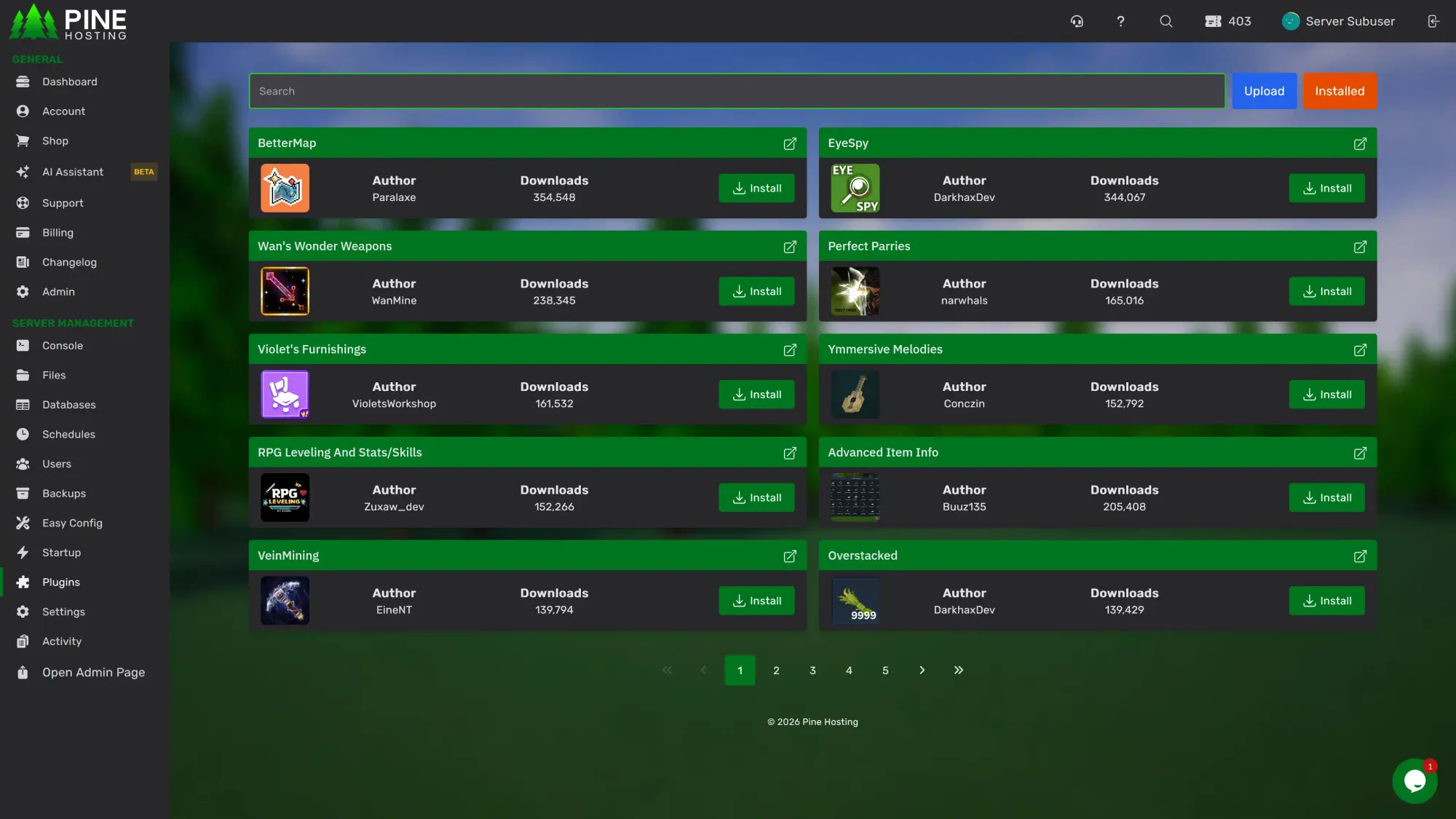
Step 3: Browse Mods From A Massive Mod List
Pine Hosting’s plugin system pulls directly from CurseForge, giving you access to a constantly expanding library of mods.
You can:
- Browse popular mods
- Search by name or category
- Upload your own custom mods
Step 4: Install Mods With One Click
To install a mod:
- Click Install
- The panel automatically handles file placement
- Required components are managed for you
This removes the most common causes of mod-related server crashes.
Step 5: Restart And Play
Restart your server from the panel and join the game. Updates and removals are just as simple.
Step-By-Step Video Guide
You can also watch this detailed video guide on how to install plugins/mods on your Hytale server.
Modded Hytale Server Performance And Scaling
The number of mods you install directly affects performance. More mods mean higher RAM and CPU usage, especially with multiple players online.
If you plan to expand your mod list, you may need to upgrade your server resources to maintain stability.
You can always use our Hytale RAM calculator that helps estimate how much memory your server needs based on player count and mod usage. This makes it easy to choose the right plan before performance issues occur.
Choosing The Best Setup For A Modded Hytale Server
Self hosting can work for testing or small private servers, but it becomes harder to manage as mods and players increase.
Dedicated modded Hytale server hosting offers:
- Faster setup
- Easier mod management
- Better stability
- Simple resource upgrades
For most server owners, a dedicated modded Hytale server host is the best long-term option.
Run A Modded Hytale Server With Dedicated Hytale Hosting
With Pine Hosting’s dedicated Hytale hosting, you can install mods in seconds, scale resources as your server grows, and focus on building your community instead of maintaining server files.
Whether you are launching your first modded Hytale server or running a growing multiplayer world, Pine Hosting makes modded Hytale server hosting simple, powerful, and scalable.