

Minecraft lag usually isn’t random. A Minecraft server almost always slows down for one of four reasons: too many chunks loaded, too many chunks ticking, too many entities (mobs/items/villagers), or a plugin/datapack task consuming too much tick time. This checklist walks you through the highest-impact settings for Minecraft server hosting first, then shows how to confirm the real cause using Spark so you aren’t guessing.
What “Lag” Means On A Minecraft Server
Player complaints usually fall into two categories:
- Server lag (TPS/MSPT problems): Blocks break late, mobs stutter, redstone feels delayed, rubberbanding happens.
- Client lag (FPS problems): Players have low frames, but the server is actually fine.
This article focuses on server lag, where the server can’t keep a steady 20 TPS because it has too much work to do every tick.
The Two Settings That Control Chunk Load
View Distance
View Distance controls how far chunks are loaded and sent to players. The higher it is, the more chunks the server must keep active around each player, and the cost multiplies fast when players spread out.
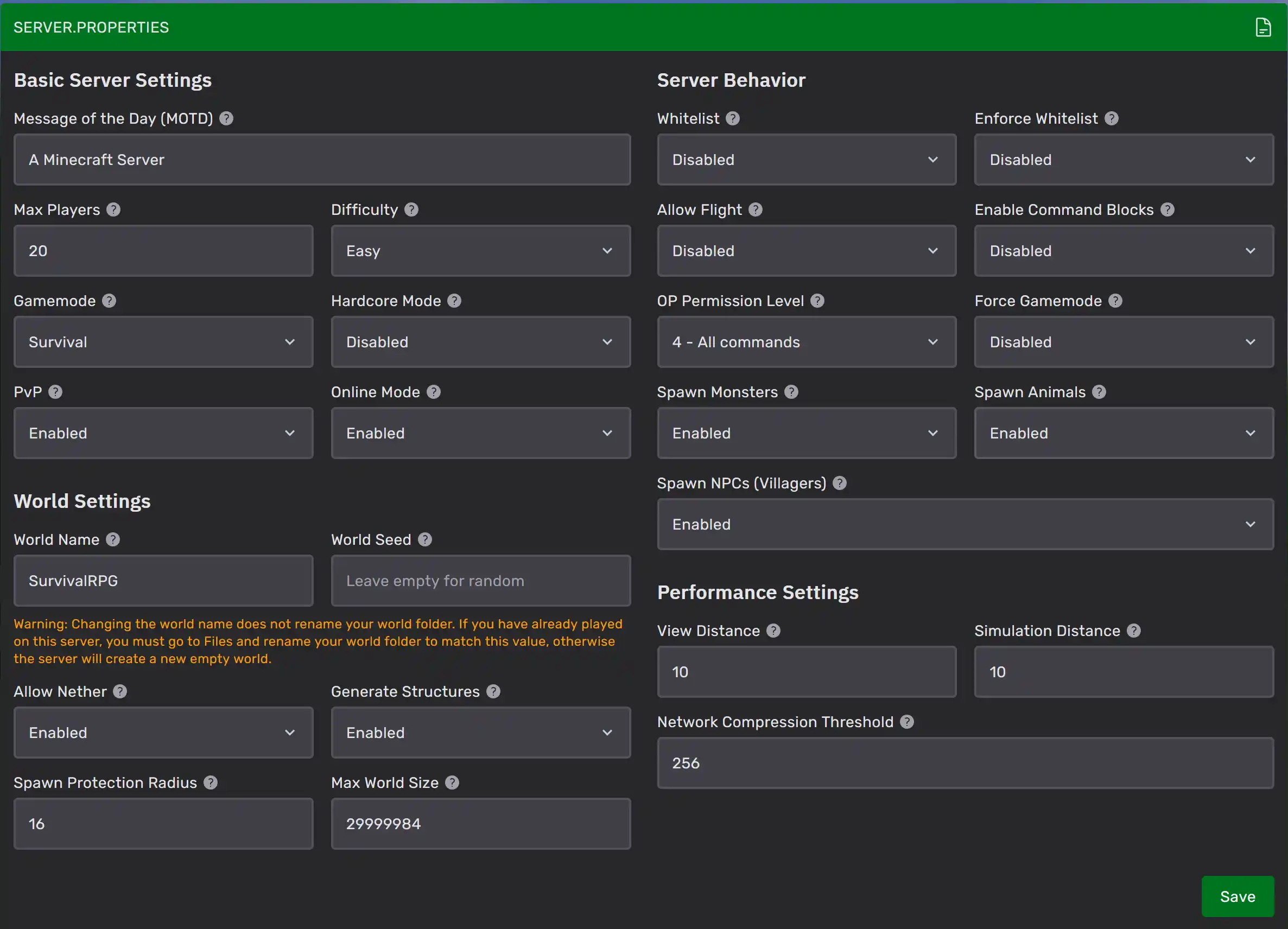
Where to change it in Pine Hosting
Go to:
Easy Config → Performance Settings → View Distance
Recommended starting values
- 1–10 players: 6–8
- 10–20 players: 6–8
- 20+ players: 4–6
If you’re not sure, start at 8 and adjust after testing.
Simulation Distance
Simulation Distance controls how far the world actively runs around players. This affects how many chunks are actually ticking entities and mechanics. Lowering simulation distance is often the best first move because it reduces tick load without making the world look dramatically smaller.
Where to change it in Pine Hosting
Go to:
Easy Config → SERVER.PROPERTIES → Performance Settings → Simulation Distance
In your panel screenshot, Simulation Distance is also 10. For most servers, lowering this is one of the fastest ways to stabilize TPS.
Recommended starting values
- Balanced survival: 5–6
- Farm-heavy worlds: 4–5
- Performance-first: 3–5
If you only change one setting first, lower Simulation Distance before View Distance.
Quick Checklist For Distance Tuning
Use this order so you can clearly see what helped:
- Lower Simulation Distance (example: 10 → 6)
- Test under real load (peak players, active farms, busy areas)
- If needed, lower View Distance (example: 10 → 8 or 6)
- Test again
Avoid changing both at once unless you’re in an emergency situation, because you won’t know which setting fixed the issue.
Mobs And Entities: The Performance Problem That Builds Over Time
If your server runs fine right after a restart but slowly gets worse, entity growth is usually involved. Even a well-hosted Minecraft server setup can be dragged down by unchecked mobs, villager setups, and item drops.
Spawn Monsters, Animals, And Villagers
Your Pine Hosting Easy Config panel includes simple toggles that map to important server.properties behavior settings:
- Spawn Monsters
- Spawn Animals
- Spawn NPCs (Villagers)
These switches are useful for isolating the cause of lag. For example:
- If lag vanishes after disabling Spawn Monsters, mob AI and mob counts are likely a major contributor.
- If your worst lag is near large trading halls, villagers are a common culprit.
These toggles are not meant to replace proper mob-cap tuning on Paper/Spigot, but they are an effective troubleshooting lever when you need quick confirmation.
The Entity Types That Cause The Most Trouble
Even on good Minecraft server hosting, these setups commonly become tick-heavy:
- High-density mob grinders that leave mobs alive too long
- Item drops piling up (farms dumping items on the ground)
- Villager trading halls concentrated into a small area
- Redstone machines that run constantly near player hubs
If your spark profile shows entity ticking dominating the report, the fix is usually reducing density, improving item collection, or spreading activity out across more chunks rather than stacking everything into one.
Timings And Spark Basics (How To Stop Guessing)
Server optimization gets much easier when you can prove what’s consuming tick time. On modern servers, spark is the standard profiling tool for diagnosing tick lag and identifying the biggest offenders.
When To Profile
Run profiling during real lag conditions:
- Peak player count
- Busiest area loaded
- Farms running
- High entity activity
Profiling when nobody is online won’t reveal the real problem.
The Most Useful Spark Command
Run a short profile and review the report:
/spark profiler start --timeout 60
When it finishes, Spark provides a report link. Use that report to identify whether the time is going into:
- Chunk loading/ticking
- Entity AI (mobs/villagers)
- Plugins or scheduled tasks
- Redstone activity
Useful Follow-Ups
If you suspect async load or memory pressure:
- All threads:
/spark profiler start --thread * --timeout 60 - Allocation profiling:
/spark profiler start --alloc --timeout 60
The goal is simple: identify the top 1–2 causes, fix them, then profile again to confirm improvement.
Server.properties Settings You Can Change In Pine Hosting Easy Config
Themost important server.properties options can be found in the Easy Config tab, to make optimization faster and safer than manual editing.
Performance Settings (Highest Impact)
- View Distance
- Simulation Distance
- Network Compression Threshold
Core Rules And Access
- Whitelist / Enforce Whitelist
- Allow Flight
- Enable Command Blocks
- OP Permission Level
- Force Gamemode
- Online Mode
Gameplay And World Settings
- MOTD
- Max Players
- Difficulty
- Gamemode / Hardcore Mode
- PvP
- Spawn Monsters / Animals / Villagers
- World Name / World Seed
- Generate Structures / Allow Nether
- Spawn Protection Radius
- Max World Size
A note shown directly in the panel: changing World Name does not rename your world folder automatically. If your server has already been played, renaming it in the config without renaming the folder can result in a fresh world being generated.
Recommended Starting Presets (For Most Servers)
If you want a simple baseline that works well on most communities:
Balanced Survival Preset
- View Distance: 8
- Simulation Distance: 6
Performance-First Preset
- View Distance: 6
- Simulation Distance: 4–5
High Player Count Preset
- View Distance: 4–6
- Simulation Distance: 3–5
After you apply one preset, profile with Spark during peak time to confirm whether chunks, entities, or plugins are the limiting factor.
Dedicated Minecraft Hosting With Pine Hosting
Settings are only half the equation. The other half is whether your Minecraft server host can deliver stable performance under real load. Minecraft is heavily dependent on consistent CPU time, and shared environments can suffer from unpredictable performance when other workloads spike.
That’s why dedicated Minecraft hosting matters. It is designed specifically around Minecraft’s performance profile instead of generic hosting.
With Pine Hosting, you get:
- A control panel that exposes key
server.propertiessettings through Easy Config, including View Distance and Simulation Distance - Faster optimization cycles because changes are made directly in the panel instead of editing files manually
- A Minecraft server hosting environment intended to keep your Minecraft server stable during peak hours, wipes, and busy events
If you want performance that stays consistent over time, combining smart tuning with dedicated Minecraft server hosting is what turns optimization from trial-and-error into a repeatable process.