

Choosing the right world size is one of the most important decisions when running a Terraria server. Whether you're hosting a small private world for friends or building a large community server, world size directly affects gameplay, exploration, and performance.
If you’ve already created a world and want to switch sizes, the process isn’t as simple as toggling a setting. Terraria requires generating a completely new world, which means your current one will be replaced.
In this guide, you’ll learn exactly how to change your Terraria server world size, whether you're self-hosting or using a provider like Pine Hosting.
What World Size Means In Terraria
Terraria offers three world sizes:
- Small – Best for solo players or small groups
- Medium – Balanced for casual multiplayer
- Large – Ideal for bigger servers and long-term progression

Larger worlds contain more resources, biomes, and space for exploration, but they also require more server resources and longer load times.
Important Before You Change World Size
Before you proceed, keep this in mind:
- Changing world size requires generating a new world
- Your existing world will be permanently deleted
- There is no way to resize an existing world
If you want to keep your current progress, make a backup before continuing.
How To Change World Size On A Self-Hosted Terraria Server
Changing the world size on a self-hosted Terraria server is more manual compared to using a dedicateed Terraria hosting provider. You’ll need to handle files, commands, and world generation yourself, but once you understand the process, it’s very manageable.
Below is a full step-by-step walkthrough.
Step 1: Fully Stop Your Server
Before making any changes, make sure your Terraria server is completely stopped.
Running changes while the server is active can:
- Corrupt your world file
- Cause data loss
- Prevent new worlds from generating properly
If you're running the server through a console window, simply close it or use exit.
Step 2: Locate Your Server Directory
Find the folder where your Terraria server is installed. This typically includes:
TerrariaServer.exe- Configuration files
- A Worlds folder (or similar)
Common locations:
- Windows: same folder as your server executable
- Linux: wherever you extracted your server files
Step 3: Find And Backup Your Current World
Navigate to the Worlds folder and locate your .wld file.
Example:
Worlds/MyWorld.wld
At this point, you have two options:
- Backup (recommended): Copy the file to another folder
- Delete: Required if you want the server to generate a new world
⚠️ Important:
There is no way to resize an existing Terraria world. Deleting or replacing it is mandatory.
Step 4: Understand World Size Values
When generating a new world via the server, Terraria uses numeric values:
1= Small2= Medium3= Large
This value is used in the -autocreate parameter.
Step 5: Generate A New World Using The Server
Now you’ll generate a fresh world with your desired size.
Open a terminal or command prompt inside your server directory and run:
TerrariaServer.exe -worldname NewWorld -autocreate 3
Breakdown:
-worldname NewWorld→ Name of your new world-autocreate 3→ Generates a large world
👉 You can change 3 to:
1for small2for medium
Step 6: Configure Your Server To Use The New World
After generation, the new .wld file will appear in your Worlds folder.
Now you need to make sure your server loads it.
If you're using a config file (serverconfig.txt), update:
world=Worlds/NewWorld.wld
If you're launching manually, you can also specify the world directly:
TerrariaServer.exe -world Worlds/NewWorld.wld
Step 7: Start Your Server
Once everything is set:
- Start your server again
- Confirm it loads the new world
- Join and verify the size (you’ll notice immediately during exploration)
Optional: Generate A World In-Game Instead
If you prefer a visual approach, you can:
- Open Terraria normally
- Create a new world with your desired size
- Locate it in:Documents/My Games/Terraria/Worlds
- Upload it to your server’s Worlds folder
This is often easier if you want specific seeds or settings.
Common Issues With Self-Hosting
Here are a few problems people run into:
- Server keeps loading old world
→ You didn’t delete or update the world path - World not generating
→ Incorrect command or missing permissions - Wrong world size generated
→ Double-check your-autocreatevalue - Server crashes on start
→ World file may be corrupted or misconfigured
How To Change World Size On Terraria Server Hosting
If you're using Pine Hosting for your Terraria server hosting solution, the process is much simpler and doesn’t require command-line work.
Step 1: Go To The Startup Tab
Log into your panel and navigate to the Startup tab.
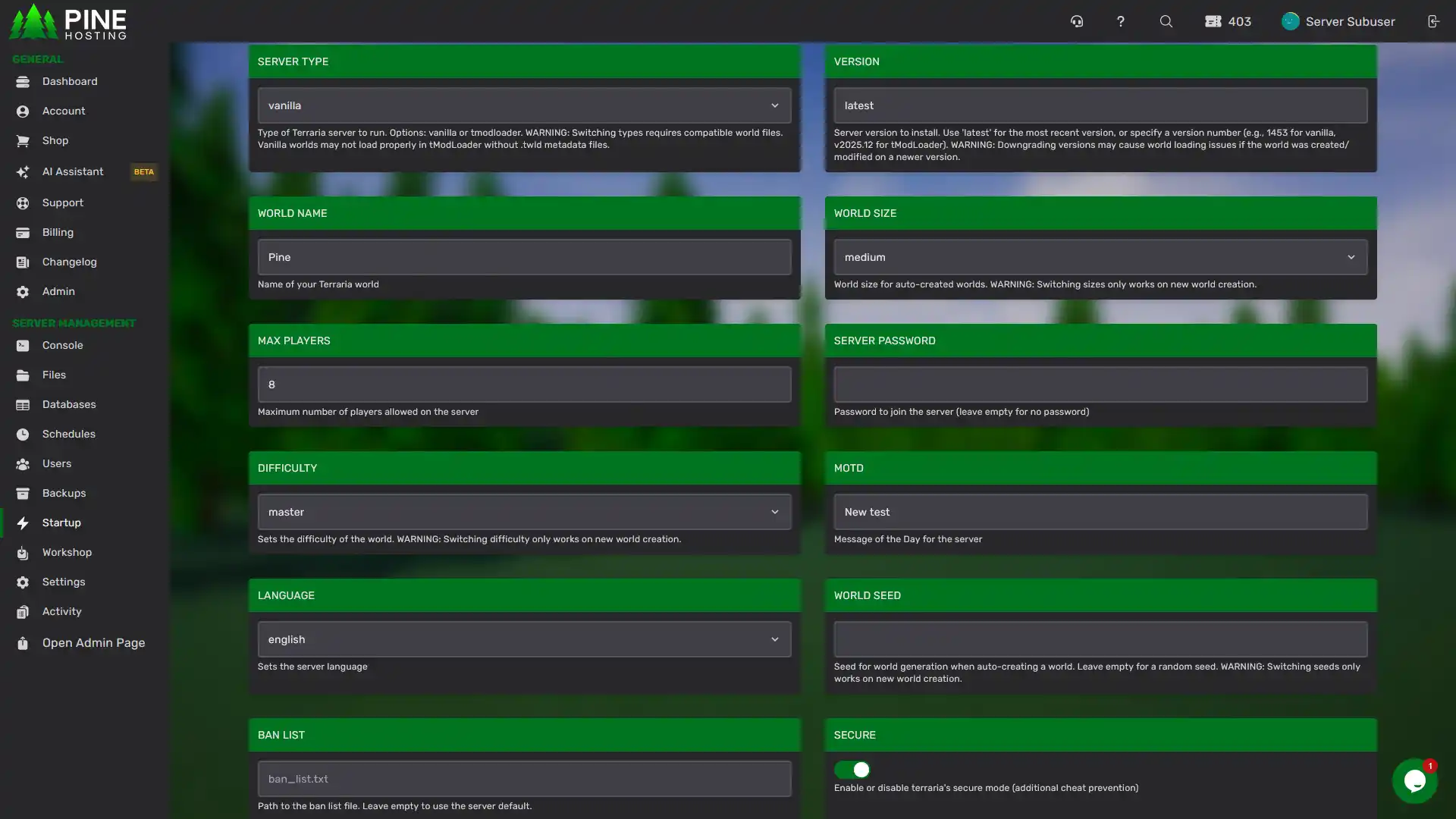
Step 2: Select World Size
Find the World Size dropdown and choose:
- Small
- Medium
- Large
Step 3: Delete The Existing World
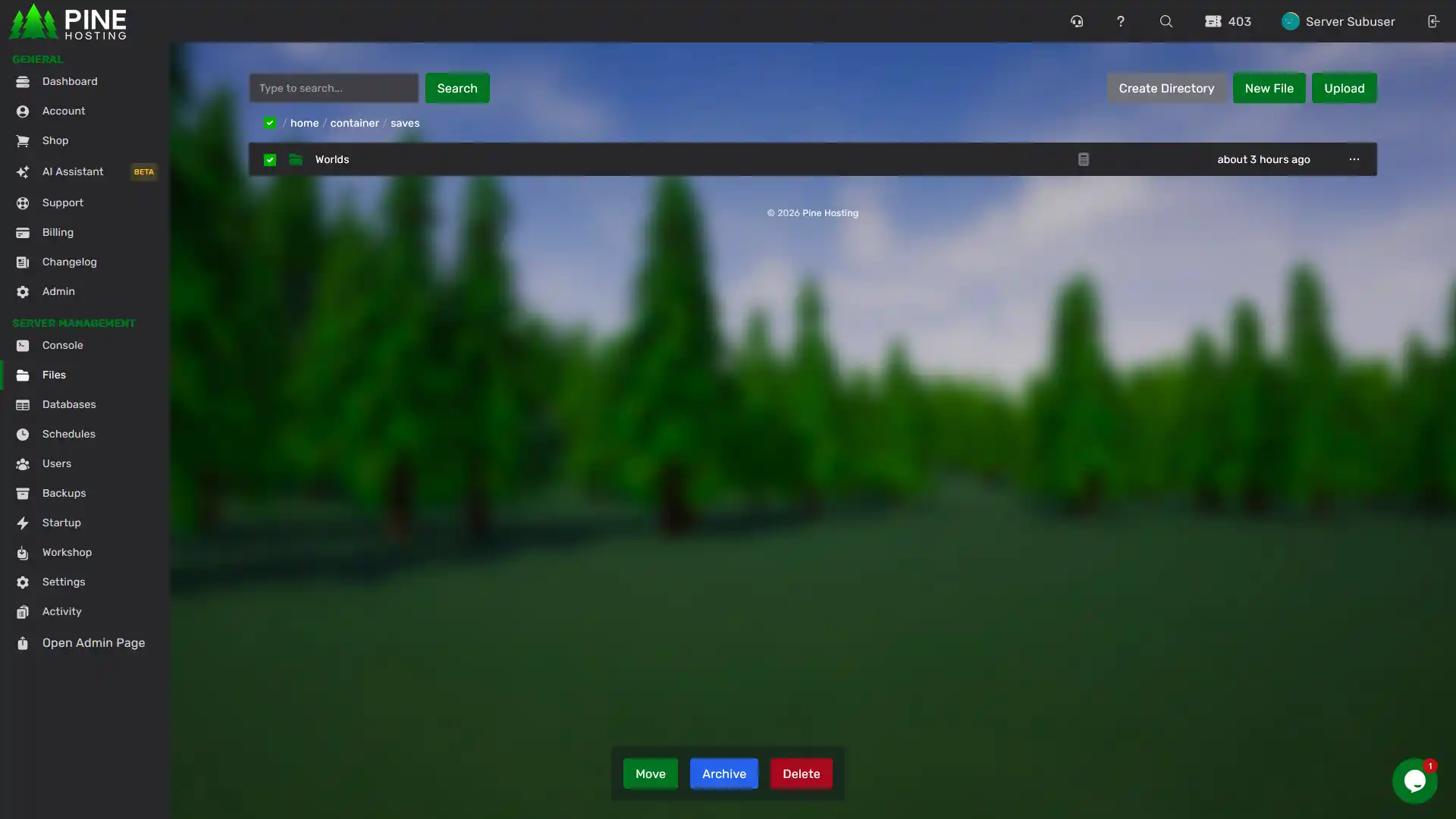
Go to:
- Server Management → File Manager
- Open the Saves folder
- Delete your current world file
⚠️ Important: Once you delete the world, it cannot be recovered unless you have a backup.
Step 4: Restart The Server
Head to the Console tab and restart your server.
Your server will automatically generate a new world using the size you selected.
How To Change World Size On A Terraria Server Video
Common Mistakes To Avoid
- Forgetting to delete the old world
The server won’t generate a new one unless the old file is removed - Not making backups
Always back up your world if you want to keep progress - Choosing a world size too small or too large
Match your world size to your player count and server performance
Why Use Pine Hosting For Terraria Servers
If you want a simpler and more reliable way to manage your Terraria server, Pine Hosting makes the process much easier.
With Pine Hosting, you get:
- Easy world size switching through a dropdown menu
- No command-line setup required
- Fast server performance for all world sizes
- Simple file management and backups
- Support that can help if anything goes wrong
Instead of manually generating worlds and handling files yourself, Pine Hosting's Terraria server hosting streamlines the entire process so you can focus on playing and growing your server.
